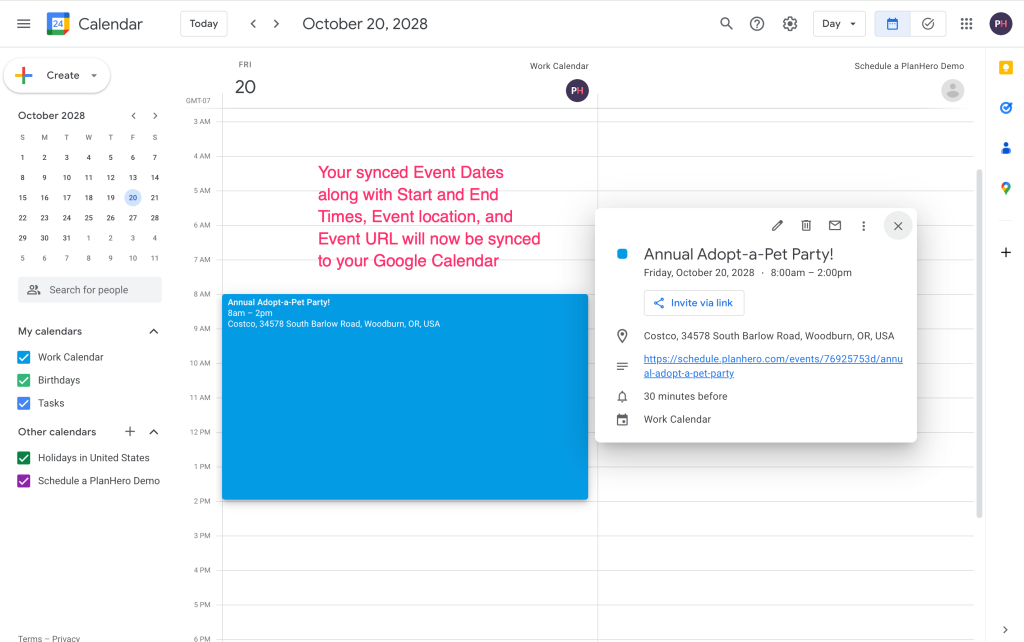
If you have a company or organization Google Calendar, you can sync your Event (Signup) to that calendar. This feature is available on our Essentials, Pro, and Enterprise plans.
How to sync your event (signup) to your Google Calendar.
We offer you two options for syncing your Event to your Google Calendar.
Option 1: Click on the pink Sync Event to Google Calendar hot link.
If you want all updates to your Event such as Date additions, Date deletions, Date Start Time and Date End Time to automatically update, you will want to click on the pink Sync Event to Google Calendar hot link.
Please note that Google Calendars do not always automatically update immediately. They can take 12 – 24 hours to do so and sometimes as long as 48 hours.
- Click on Event Settings
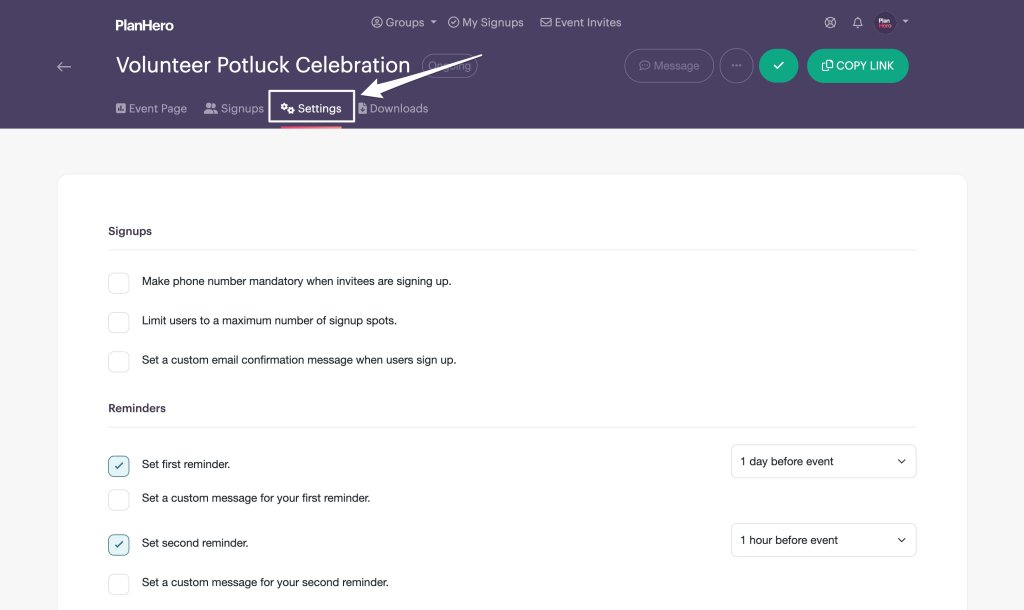
- Scroll down to Calendar
- Click pink Sync Event to Google Calendar hot link

- Next, you will be prompted to select which Google account you wish to use
- Then Google will let you know that PlanHero.com wants access to your Google Account. Click the Continue button.
- After syncing to your calendar, you will see the following notification at the top of your PlanHero dashboard.

Your Event is now synced to your Google Calendar and any updates will be automatically updated in your calendar (the timing of which is dependent upon how often Google refreshes the calendar data).
Option 2: Download an .ics file and import it to your calendar
Please note that, with this option, changes to your Event are not automatically reflected in your calendar. You will need to complete the following process each time you make changes to your Event to keep it current.
- Click on Event Settings
- Scroll down to Calendar
- Click the Download button

- A calendar .ics file will be downloaded to your Downloads folder
- Open your Google Calendar
- Click on the plus sign ( + ) next to Other calendars
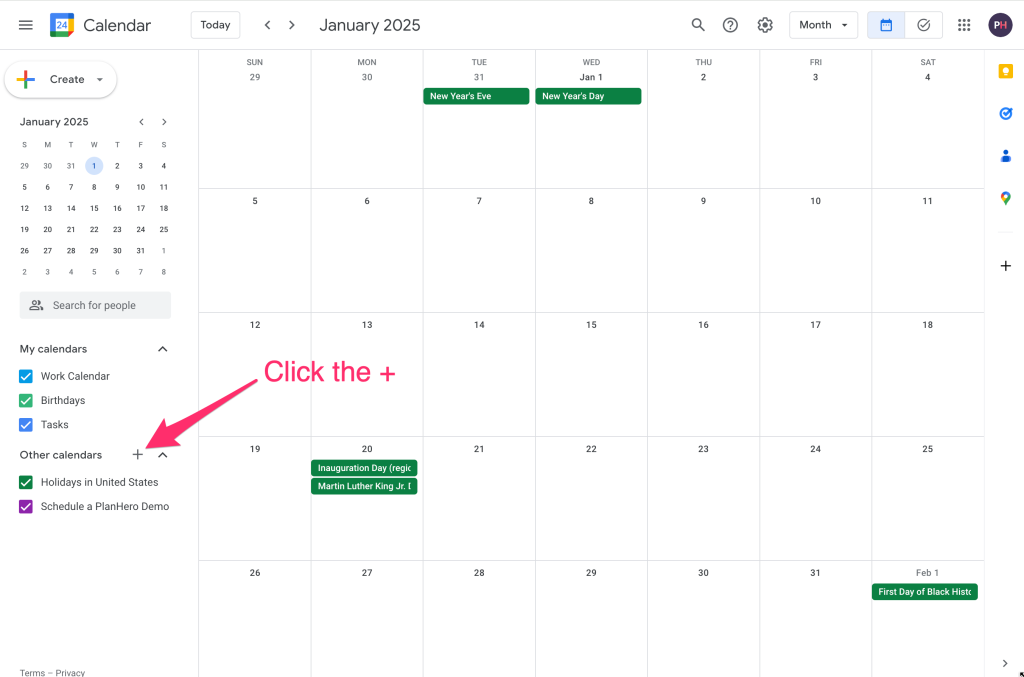
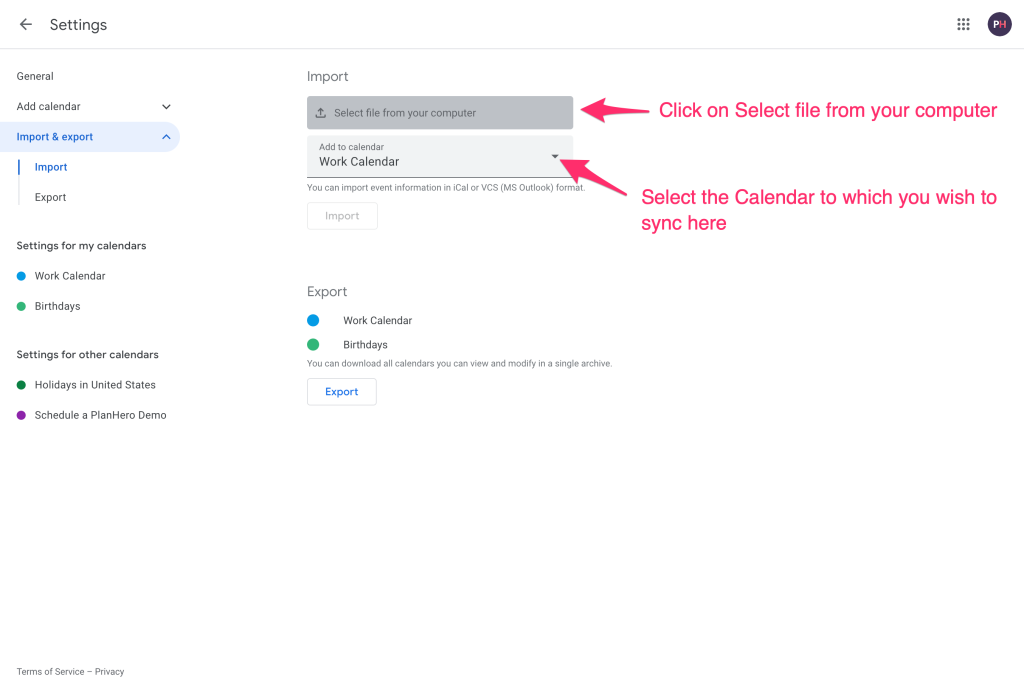
- Click on Import

- Click on Select file from the computer (Note: You can also switch the calendar to which you wish to sync here)
- Click on the .ics file that you just downloaded
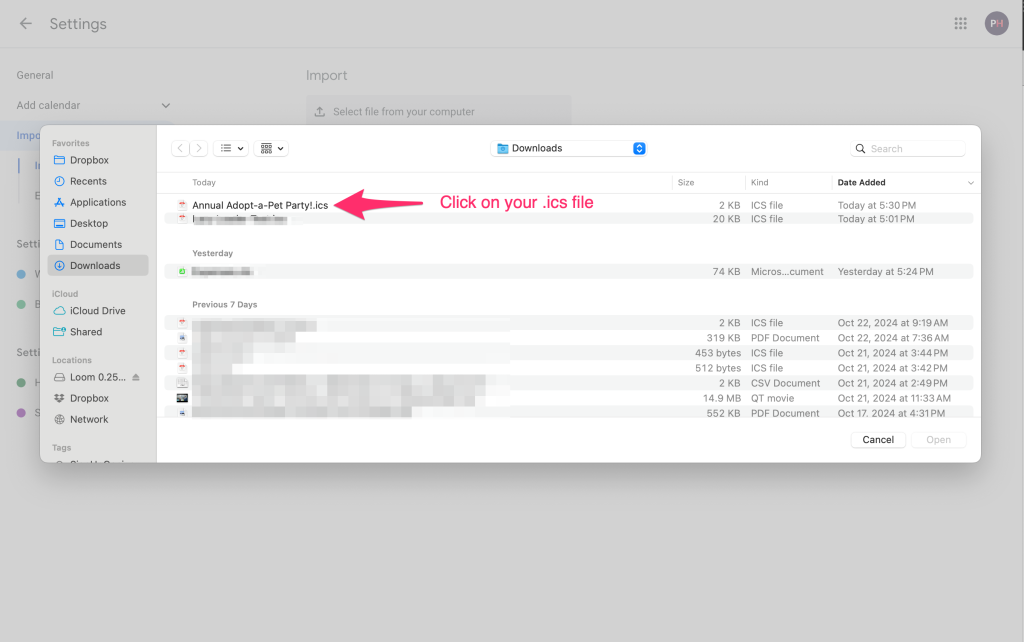
- Click on Open

- Click Import button

- Your synced Event Dates along with Start and End Times, Event location, and Event URL will now be synced to your Google Calendar