


New! Run Volunteer Background Checks with PlanHero’s Checkr Integration
For organizations that rely on volunteers, keeping the people you serve safe is important—and managing background checks shouldn’t require an entirely separate volunteer-management process.
That’s why we’re excited to introduce PlanHero®’s integration with Checkr, available with the PlanHero Impact Plan.
The integration allows organizations to initiate background checks for their Members through Checkr directly from PlanHero. Once connected, an administrator can send a Checkr invitation from a Member’s PlanHero profile and later return to that same profile to review the status of the background check.
Whether you’re managing volunteers for a school, nonprofit, faith organization, community group, or other organization, the goal is simple: make another important part of managing your people easier to handle from one place.
Why Conduct Volunteer Background Checks with Checkr?
As our partners over at Checkr so aptly state on their website,
Verify every volunteer like your community depends on it—because it does. Nonprofits often work with the most vulnerable members of society: children, the elderly, and families in crisis. You need to quickly and comprehensively verify volunteer and staff qualifications at scale while keeping your budget balanced. Checkr gives volunteer coordinators and nonprofit HR teams a single platform to handle all three without juggling multiple vendors.
How the PlanHero + Checkr Integration Works
Checkr is the background screening provider. Your organization establishes or connects its own Checkr account, selects the appropriate screening packages, and pays Checkr directly for background checks.
PlanHero provides the connection between your Impact Plan Members and Checkr, making it easier to initiate and track the screening process as part of your Member management workflow.
Step 1: Connect Your Checkr Account
To get started, you’ll need administrative access to both your PlanHero and Checkr accounts.
From PlanHero:
- Log in to your PlanHero account.
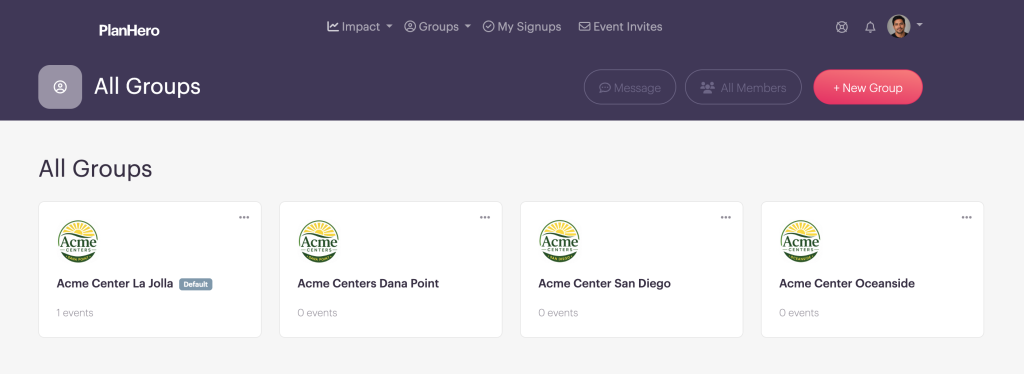
- From All Groups, select a Group for which you have admin access.
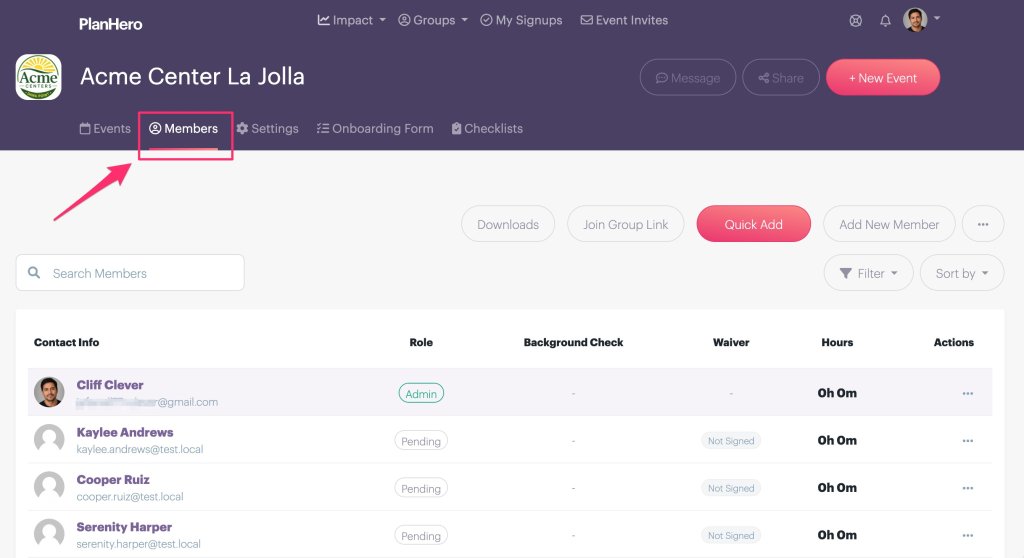
3. Open the Members tab.
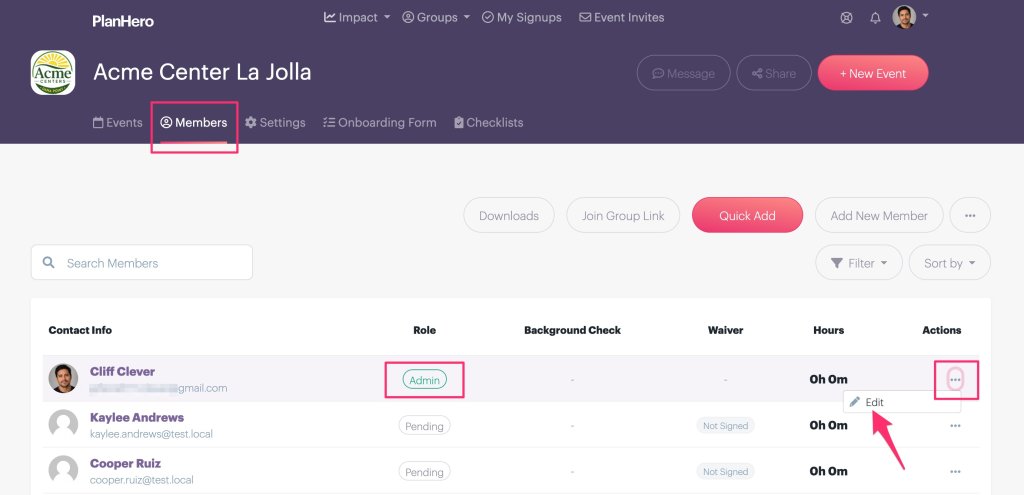
4. Locate your own admin profile.
5. Click the three-dot menu (…) and select Edit.
6. Scroll to the Checkr section and click Connect.

7. Follow the prompts in the Checkr window that opens.
If your organization already uses Checkr, you can sign in and connect your existing Checkr account.
If you’re new to Checkr, you’ll be able to create an account as part of the connection process. You’ll provide your organization and payment information directly to Checkr and submit the account for Checkr’s review and credentialing.
Important: Charges and invoices for background checks come directly from Checkr—not PlanHero.
Once Checkr completes its credentialing process, you’ll be notified when you’re ready to begin ordering background checks through PlanHero.
Step 2: Send a Background Check Invitation to a Member
Once your Checkr integration is active:
- Go to the appropriate Group in PlanHero and open the Members tab.
- Find the Member who needs a background check.
- Open the Member’s profile in Edit mode.

4. Scroll to Background Check Details.
5. Click Send Checkr Invitation.

6. Review the information and complete any required fields.
7. Click Submit.
The Member will then receive the invitation needed to complete the background-check process through Checkr.
Step 3: Review the Background Check
You don’t have to keep bouncing between systems just to see where things stand.
Return to the Member’s PlanHero profile and open it in Edit mode. Under Background Check Details, PlanHero will load the Member’s Checkr background-check information for review.
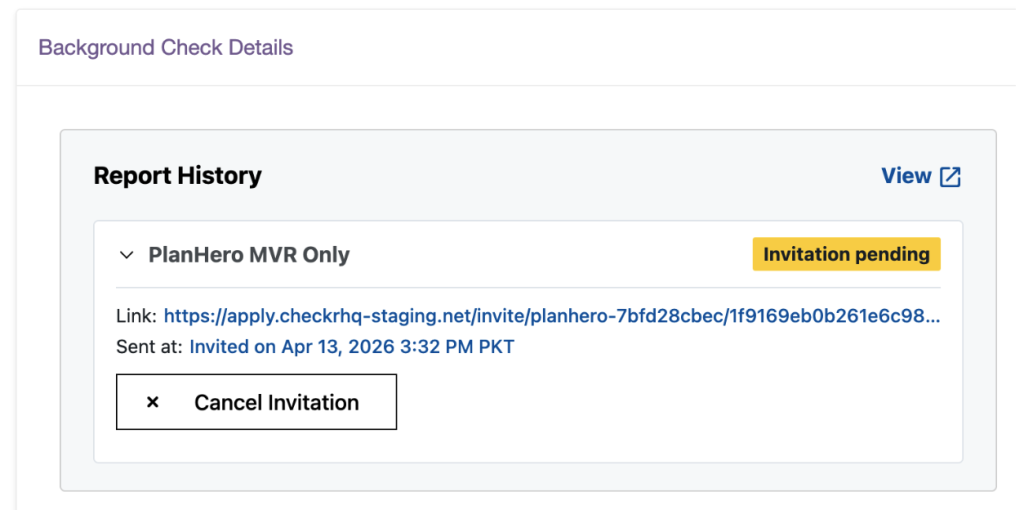
You can also use View to access the report information through Checkr when additional review is needed.
Organizations with Multiple Groups or Locations
Organizations with more complex structures can also take advantage of Checkr’s account hierarchy.
Checkr allows organizations to establish different nodes within their account—for example, different locations, departments, or Groups. Screening packages can then be assigned to particular nodes.
When ordering a background check through PlanHero, administrators can select the appropriate Checkr node, when applicable, followed by the screening package available for that node.
This can be especially useful for organizations operating multiple chapters, campuses, locations, or programs with different screening needs.
What Happens Inside Checkr?
While PlanHero makes it possible to initiate background checks and review their status as part of your Member-management workflow, Checkr remains the background screening platform.
Certain screening-related functions are therefore handled directly within Checkr, including:
- Reviewing and adjudicating candidate reports
- Beginning the adverse-action process
- Managing Checkr account users
- Managing billing and payment information
- Configuring Checkr account settings
This keeps the responsibilities clear: PlanHero helps you manage your Members and initiate the screening process; Checkr handles the background screening itself.
Background Checks as Part of Volunteer Management
Background checks are rarely an isolated administrative task.
Organizations may also need to know whether a volunteer has signed a waiver, completed required training, submitted documentation, fulfilled a checklist, or checked in for a shift.
Bringing background screening into the PlanHero Impact Plan helps organizations keep another important piece of that Member-management process connected to the people they’re already managing in PlanHero.
Instead of building a volunteer program around scattered spreadsheets, emails, signup tools, and disconnected records, organizations can manage more of the volunteer journey in one place—from onboarding and scheduling to requirements, participation, and background screening.
Ready to get started? Impact Plan administrators can connect their Checkr account from within PlanHero and begin setting up background screening for their Members.
